Find and Find & Replace
Three commands in the Find menu, in increasing order of reach — one document, then the whole project.
| Command | Shortcut | Reach |
|---|---|---|
| Find… | ⌘F | The single field or section you're currently in. |
| Find & Replace in Document… | ⌘⌃F | Same one field, with a replace row. |
| Find & Replace in Project… | ⌥⌘F | The whole manuscript, the whole Story Bible, or both. |
Find… and Find & Replace in Document…
The Mac's own find bar, attached to whatever text you're currently focused in — a scene's prose, a note, any field. Incremental highlighting, previous/next, and the system's own case and word-match options, exactly as they behave in every other Mac app. Both are disabled when nothing is focused to search.
Find & Replace in Project…
A different tool for a different job: search and rewrite across everything at once, with the options a project-wide pass actually needs.
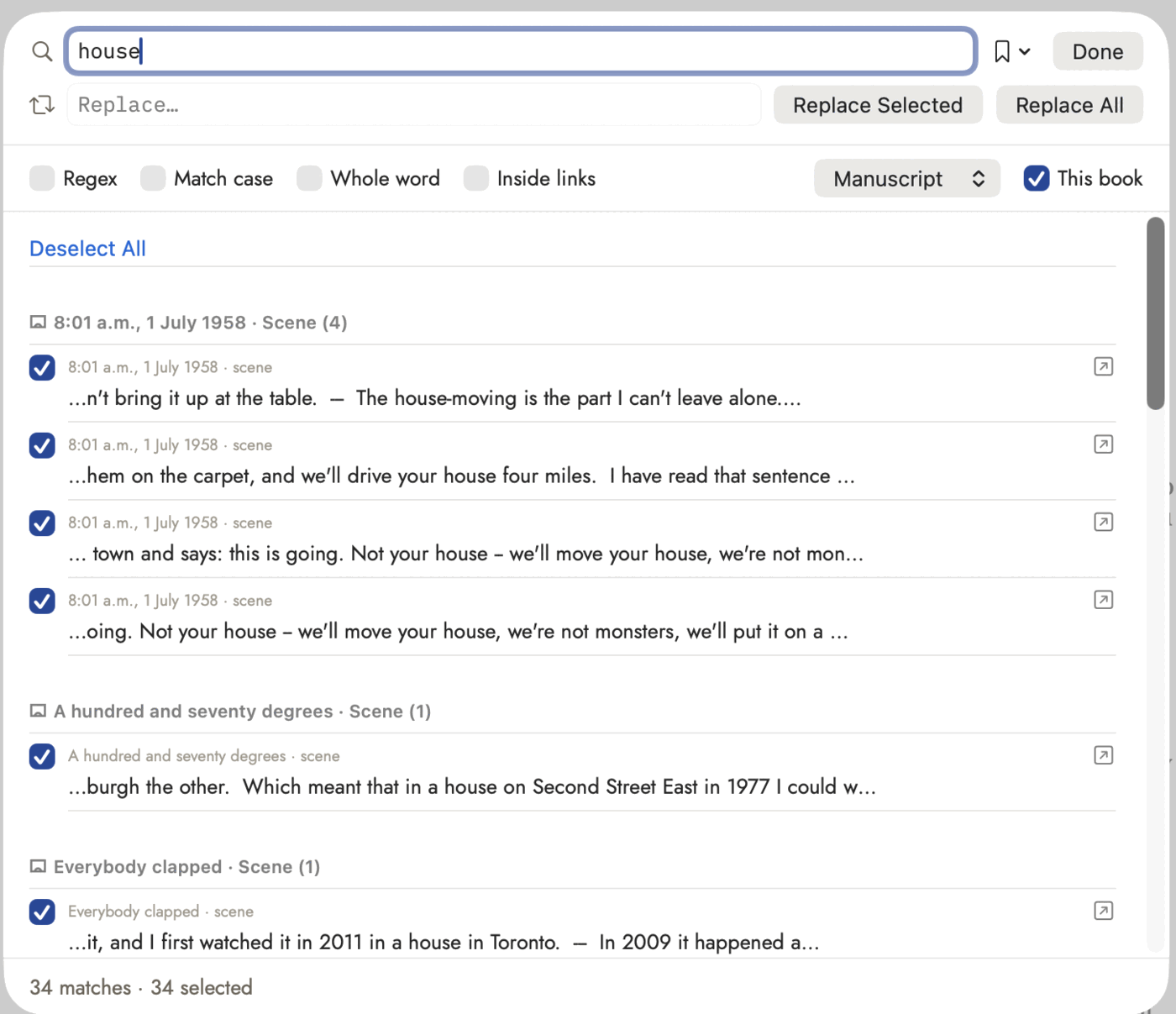 Every match is checked the moment a search finishes,
which is why the footer reads 34 and 34. Replace Selected and Replace All
do the same thing until you uncheck something.
Every match is checked the moment a search finishes,
which is why the footer reads 34 and 34. Replace Selected and Replace All
do the same thing until you uncheck something.
[[wikilink]] and Inside links is off by
default. That default is protecting the links; the empty result is the
protection working, not the search failing.
Search options
| Toggle | Does |
|---|---|
| Regex | Treats Find as a regular expression instead of literal text. |
| Match case | Case-sensitive matching. |
| Whole word | Only matches whole words, not a substring inside one. |
| ^$ per line (regex only) | Line anchors match at every line break, not just the start and end of the whole field. |
| . matches ¶ (regex only) | Lets a dot match across paragraph breaks. |
| Inside links | Off by default. Matches inside a [[wikilink]] are skipped unless this is on, protecting the link's slug and ID from an accidental rewrite. |
A scope picker chooses where the search runs — the manuscript, the Story Bible, or both — and Story Bible here means every narrative field a record has, not just Summary: Biography, Physical, Personality and Voice on a character; Exterior, Interior and History on a location; and so on per type. When a manuscript is active, a This book toggle limits manuscript matches to it alone.
NSRegularExpression, built on ICU) — close enough to the PCRE
flavor most tutorials and testers use, including
regex101.com, a free site where a
pattern lights up over sample text as you type it (set its flavor to PCRE2
for the closest match). One worked example: Find \b(\w+) (\w+)\b,
Replace $2, $1, with Regex on, turns a run of "Firstname
Lastname" mentions into "Lastname, Firstname" — \w+ matches a
run of word characters, the parentheses capture each one, and
$1/$2 call them back in the order you want.
[^1], [@citekey])
are always protected, regardless of the Inside Links toggle — the marker
itself is skipped, though the note or citation's own text stays searchable.
Replacing
Replace Selected rewrites only the checked matches in the results list; Replace All rewrites every match currently found. Every match is checked by default after a search, so Replace Selected behaves like Replace All unless you deliberately uncheck something first.
A capture-group and case-transform syntax is available in the Replace
field for regex searches — $1 for a captured group,
\U…\E to upper-case a replacement.
Cleanup presets
The bookmark menu beside the Find field holds seventeen built-in, ready-made passes for the small inconsistencies a long draft accumulates — each one a regex already written for you, so using one needs no regex knowledge at all. Running one asks for confirmation first, states its scope, and — like any other replace — takes its snapshot and runs as one undo. A few chain more than one pass internally (curly quotes is really five steps run together) without asking you to notice the seams.
General typography and formatting:
| Preset | Does |
|---|---|
| Curly quotes | Straight " and ' → typographic “ ” ‘ ’ |
| Em dash | -- → — |
| Ellipsis | ... → … |
| Collapse double spaces | Two or more spaces → one |
| Trim trailing whitespace | Remove spaces/tabs at line ends |
| Collapse blank lines | Three or more blank lines → one |
| Demote headings | # → ##, ## → ###, and so on |
| Promote headings | ## → #, ### → ##, and so on |
| Strip emphasis | Remove **bold** and *italic* markers |
| Straight apostrophes | Curly ‘ ’ → ' — for plain-text export |
| Straight quotes | Curly “ ” → " — for plain-text export |
Writer-focused fixes, aimed at things a draft accumulates rather than formatting inconsistencies:
| Preset | Does |
|---|---|
| Repeated words | "the the" → "the" — accidental word doublings |
| Double punctuation | !! or ?? → ! or ? |
| Space before punctuation | Removes a stray space before , . ; : ! ? |
| Spaced em dash | " — " → "—" — removes spaces around an em dash |
| Spaced dots to ellipsis | ". . ." → "…" |
| Normalize scene breaks | *** or --- alone on a line → * * * |
The same menu lets you save your own current search for reuse later, and keeps your last eight searches to hand.
Renaming a Story Bible entity from here
If the Find text exactly matches a Story Bible record's name, a banner offers to rename the record itself to whatever's in the Replace field — every wikilink pointing at it keeps working, since a link stores the record's identity, not its display text.