History
The world your story happens against — real events, drawn on the same axis as the Timeline tool, so a chapter set in October 1970 sits directly above what was actually going on in October 1970.
What it is, and what it isn't
A History record is not a Story Bible Event. A Story Bible event is something that happens in the book — it has participants, a place, a spot in the narrative sequence, and you're answerable for it. A History record is furniture: the Grey Cup was played whether or not anyone in your manuscript watched it. Keeping them separate means a research set with hundreds of rows never shows up in the Name Registry, the continuity scan, the relationship graph, or the AI roster — it only ever appears on the timeline, where it belongs.
Building a History
Reached from History… in the Timeline tool's Visual tab (see below) — three ways in, because research arrives three ways.
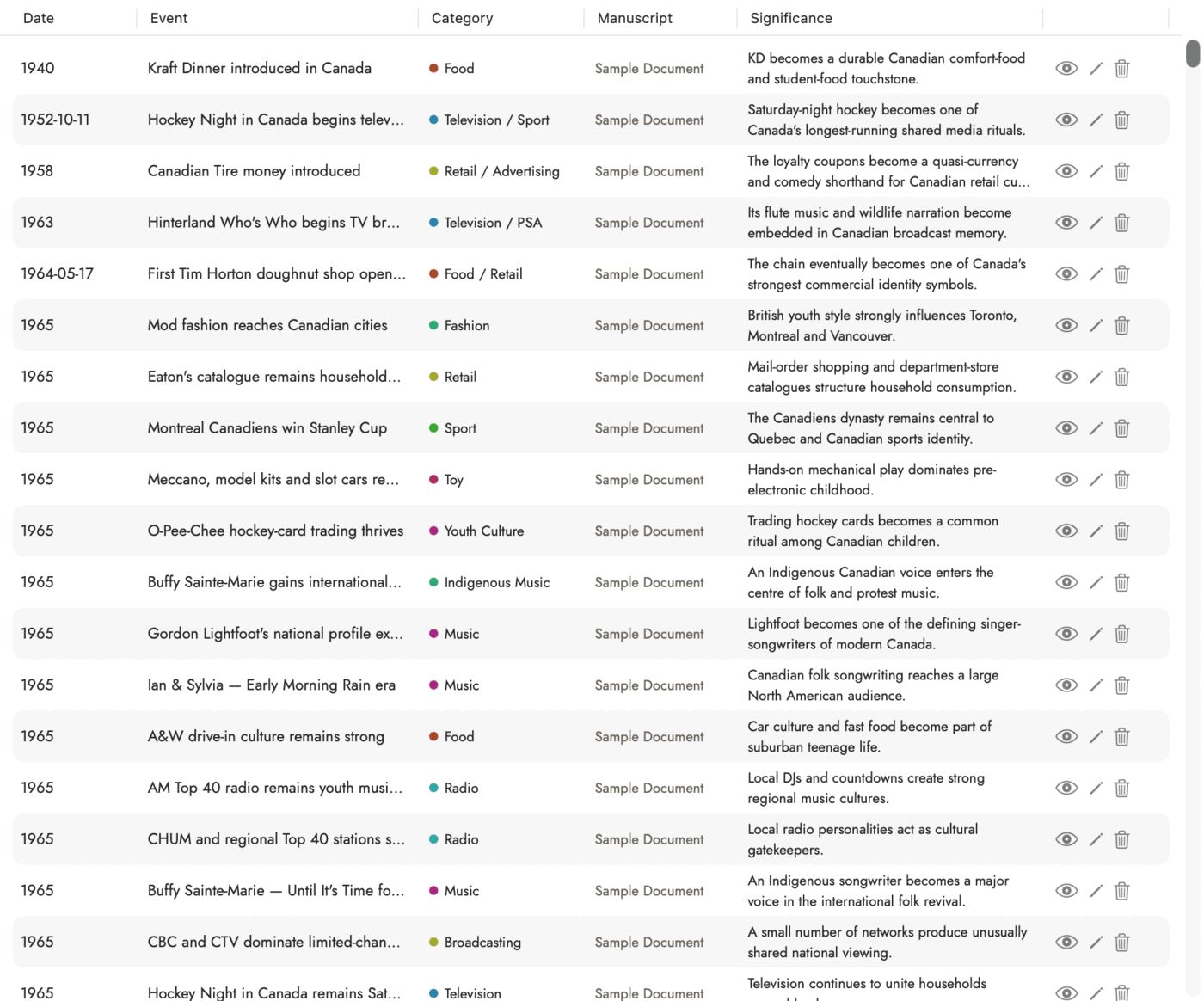 However the events arrived, this is where they land.
Category drives the colour they are drawn in everywhere else.
However the events arrived, this is where they land.
Category drives the colour they are drawn in everywhere else.
Import a CSV or TSV
Import CSV… opens a file dialog first, before anything else — choose the file, and only then does the sheet open, already showing what it found. The standard columns are Start Date, End Date, Precision, Year, Strand, Category, Event / Touchstone, Significance, Region, Novel Link, Notes, Source, Duration (Days) and Date Confidence, but close spellings are accepted and only the event name column is required — a file missing Region or Duration imports fine, just blank in those columns.
Dates can be almost anything readable: 1965,
March 1965, 1965-03-17,
17 March 1965, 1960s, c. 1965. A row
whose date can't be parsed is still imported — it's held and shown in the
table with the date text you gave it, just not drawn on the timeline until
you fix it.
Add Event
Types one event at a time, in a plain form: what it is, why it matters, its category, its start and end date, and optionally a region, a generation, notes and a source. The same form opens when you edit an imported row afterwards.
Build with AI…
For when you have no spreadsheet yet. This opens a short questionnaire — eight fields, none required — and assembles whatever's filled in into a full research brief. Sgeulai does not send this anywhere itself: the brief wants a model with web access and a file sandbox, which the app's own Claude integration doesn't have.
| Field | Asks for |
|---|---|
| Subject | What the timeline is about, one or two sentences — the angle, not just the topic. |
| Timeframe | Start year to end year, and whether earlier foundation records should come along too. |
| Density | Roughly how many records — or leave it to be told what the dates can support. |
| Strands | Five to ten parallel threads. This is the column that lets one file serve two purposes — leave it blank to have strands proposed for you. |
| Significance column | Renames that column in the result, to force every row to justify its presence. Blank uses the neutral default. |
| Link column | A tag cutting across the strands — usually which manuscript or phase an event belongs to. This is the column Sgeulai reads to file each imported event under the right book. |
| Cross-reference sheet | An optional second sheet mapping things in the subject to their dated sources — fiction to fact, product to decision. Write "none" to skip it. |
| Extra requirements | Anything beyond the standard build — regional balance, people who must appear, sources to prefer or avoid. |
Subject, Density, Extra requirements and — when the project has manuscripts — Link column all start pre-filled from the project itself, so there's usually less to type than eight blank fields suggests. Worked Example replaces every field with the brief that produced a real, finished timeline, to edit down from or just to read as a model answer. Preview shows the exact prompt that's about to go on the clipboard, without leaving the sheet.
An Open in menu at the top of the sheet picks which assistant — ChatGPT, Claude, Gemini or Perplexity — the writer's own choice, remembered for next time. Copy & Open in Selected AI Provider puts the brief on the clipboard and opens that assistant. ChatGPT's site receives the whole brief and sends it; Claude's desktop app, or its site when the app isn't installed, opens with the brief in the message box, waiting for Return; Gemini and Perplexity open a blank chat to paste into. What comes back is a spreadsheet in the same standard shape, ready for Import CSV… above. Copy, next to it, does the clipboard half only, for pasting somewhere else entirely.
Which manuscript it belongs to
A research set for a series is rarely one timeline — it's several braided together. Importing asks plainly which manuscript the file is for, with checkboxes to also show it under others, rather than walking through the file's own tag values one at a time. If the file carries its own column tagging each row to a book — Twain's research set calls it "Novel Link" — an optional toggle lets those tags override the choice above wherever they actually name a manuscript in your project; a tag that names nothing in the project falls back to what you chose rather than silently becoming background research seen everywhere.
An event with no manuscript at all — nothing selected, or a project with no manuscripts yet — means "true of the world no matter which book is open," and is drawn under every manuscript's timeline.
Inside the History editor itself, an imported file becomes a named set — export it, and later remove the whole set in one action (Manage ▸ Imported sets) without touching anything you typed by hand. The same menu bulk-allocates a whole set, or a selection of rows, to a different manuscript after the fact.
Where you see it
The Timeline tool
Open Timeline and switch to its Visual tab — the same place the analysis tools describe as "the same events on two clocks." A History band runs beneath the story's own ruler, coloured by category, with a toggle to show or hide it, a key naming what each colour means, and its own zoom and focus controls shared with the ruler above it — so zooming into one chapter narrows both at once, and they never drift out of alignment with each other.
The scene and chapter footer
A compact version of the same band sits at the foot of the editor while you're writing a scene or chapter — what else was going on, right where you're working. It shows a stretch of time centred on that record's own date, with zoom controls (±7 days out to ±20 years) to widen or narrow the window. This record's own place in it is drawn as a solid black bar directly among the coloured History marks, rather than on a separate axis of its own — the point is seeing where you are amid what was really happening, not two different rulers that might disagree. Along the bottom, the earliest and newest dates the window currently shows are labelled directly under the band.
A chapter or scene with no date of its own still gets a window — centred on the story's overall midpoint instead, so zoom has something to narrow toward — but draws no black bar, since there is nothing yet to honestly mark. See below for where that date comes from.
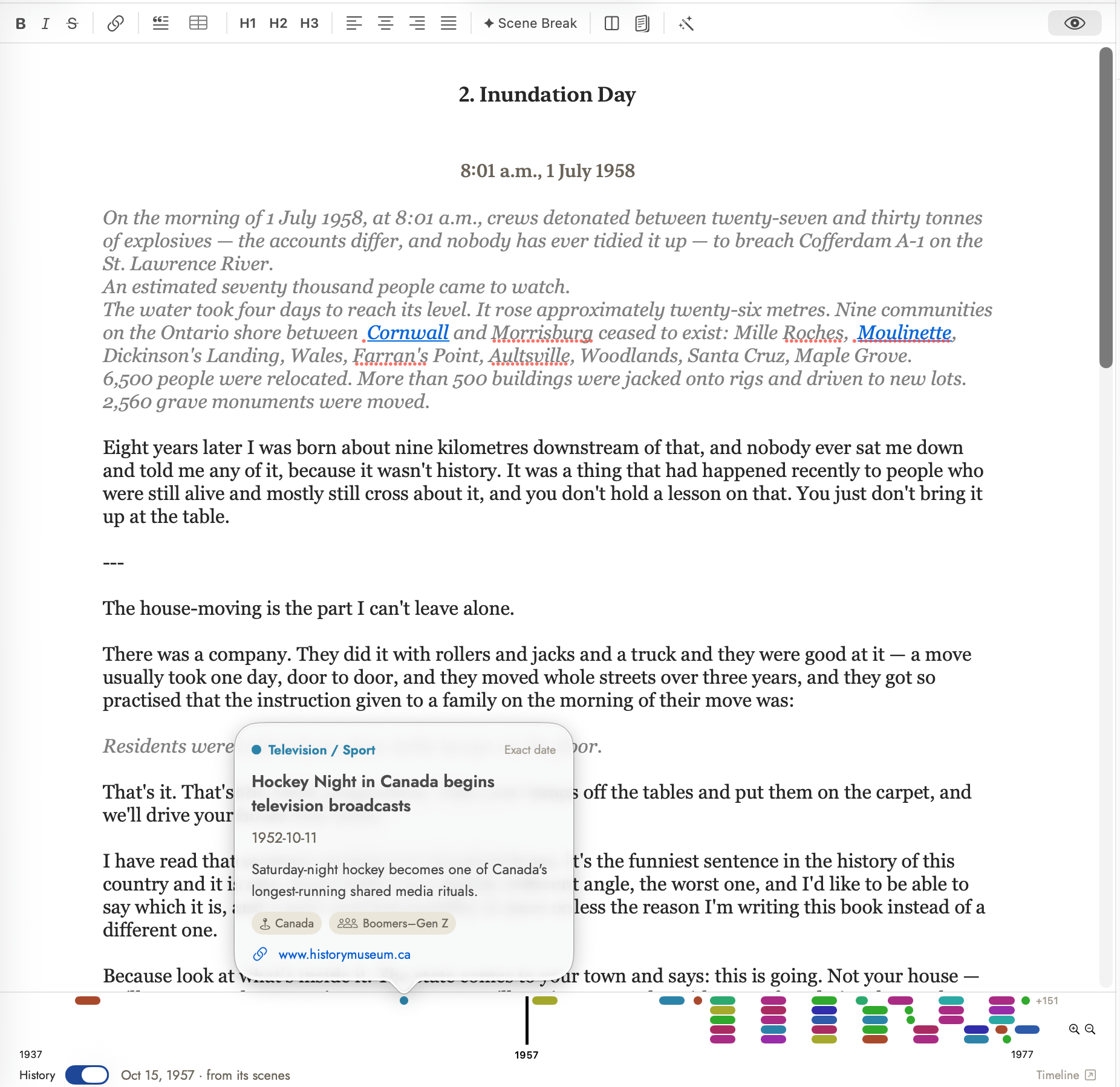 The black bar is this scene; the coloured marks are
what else was happening. Click one and it tells you what it was.
The black bar is this scene; the coloured marks are
what else was happening. Click one and it tells you what it was.
The chapter or scene's own date
The black marker's position, and the footer's default view, come from one shared answer: an Event tied to that chapter or scene takes priority if there is one, otherwise the chapter or scene's own In-Story Date field (in the Story Bible) is used, and a chapter with none of its own can inherit one from its scenes. This deliberately does not fall back to a file's modification date or any other date that isn't part of the story itself.
Typing that date by hand is one way to set it. Find Only What's Missing… can also fill it from the manuscript's own prose, for a chapter or scene that doesn't have one yet — see Reading the manuscript with AI.