Importing and exporting
Sgeulai is not trying to be the last place your book ever lives. Everything comes in and everything goes out.
Bringing work in
The toolbar's Import menu is short on purpose: the two imports most books arrive by, then the window that holds the rest.
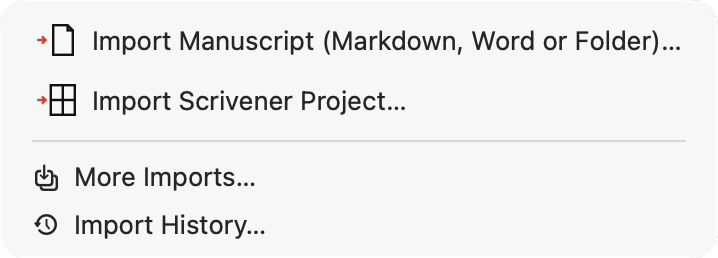
| On the menu | What it does |
|---|---|
| Import Manuscript (Markdown, Word or Folder)… | A manuscript from a Markdown, text or Word file, or from a folder of them — see below. |
| Import Scrivener Project… | Brings the binder structure across along with the text. |
| More Imports… | Opens the Import window, with every import and its options. |
| Import History… | Every import into this project, each with a way to revert it — see below. |
Import Project Backup… is the one way in that's in neither place: it lives in the File menu, because it replaces a project rather than adding to one.
The Import window
More Imports… opens a window listing every import, grouped down the left. Choose one and the right side says what it reads, shows its options if it has any, and its Import… button opens the file panel. Options are remembered, and the window opens on the format you used last.
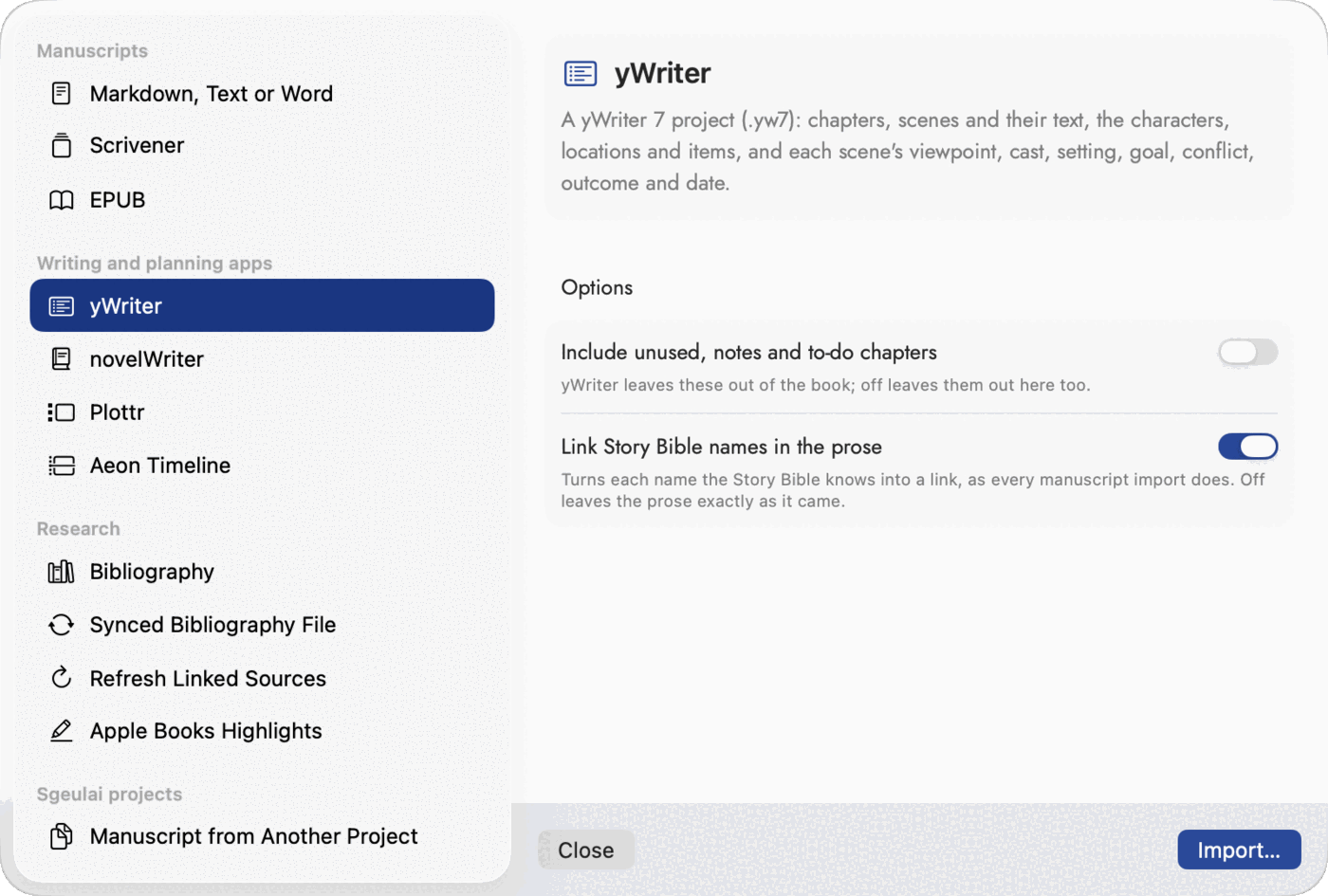 A format with options shows them under its
description; one without goes straight to its button.
A format with options shows them under its
description; one without goes straight to its button.
| Group | Imports |
|---|---|
| Manuscripts | Markdown, Text or Word; Scrivener; EPUB, which splits a finished book back into chapters. |
| Writing and planning apps | yWriter and novelWriter projects, with their cast and places; Plottr, which rebuilds the manuscript with the plot lines you planned; Aeon Timeline, its people, places, events and links with each date at its own precision. |
| Research | Bibliography (BibTeX, CSL-JSON or EndNote XML), Synced Bibliography File and Refresh Linked Sources — see Notes & citations — and Apple Books Highlights, see Research Highlights. |
| Sgeulai projects | Manuscript from Another Project — see below. |
After the file panel every import runs the same way: straight away, with no "review before committing" step. A single alert reports what came in by the numbers, and that's the whole interaction.
What each import actually reads
A folder of Markdown or text files. Import
Manuscript (Markdown, Word or Folder)…, on the menu, and the
binder's own Import button take a whole folder as well as a single file — the way Ulysses, iA Writer, Obsidian and Bear keep a
book. A file at the top is a chapter; a folder is a chapter and its files
are scenes; a folder of folders is a part. Files come in Finder's order, a
sorting number at the front ("01 ") is left off the title, and a file's
title is its front matter title:, else its opening
# Heading, else its name. TextBundles (.textbundle,
.textpack) are read too. An Obsidian Longform index, or a
contents page linking to the files beside it, is left out and its order
followed. From Ulysses, drag a group's sheets into a Finder folder and
import that.
Import Scrivener Project… reads the .scriv
package's own binder file directly — the same XML Scrivener itself writes —
rather than guessing structure from folder names. Three levels of nesting
in the binder becomes Part → Chapter → Scene; two levels gets disambiguated
by title (a document titled "Part One," or most of a level's children
literally titled "Chapter…") before falling back to a flatter reading.
Per-document word-count targets, revision status from Scrivener's own
status-definitions table, and whatever sectionpurpose/
globalpurpose/valueshift custom metadata fields you
set up in Scrivener come in too, not just the prose.
Plottr reads a .pltr file,
which is already plain JSON — Plottr's own export format, not something
Sgeulai has to reverse-engineer. Characters and places become Character
and Location records, with Plottr's own custom character fields mapped
across; plot lines become Story Arcs, and the cards on them become arc
beats. The one genuinely clever part: Plottr has no manuscript field of its
own — writers who draft inside it do so in a card's description, one line
at a time. So Sgeulai reconstructs a manuscript from the timeline's row
order (Plottr's closest thing to a table of contents), taking whichever
card on each beat — across every line — carries the most text, on the
reasoning that the richest card at a position is the actual draft and the
others are outline notes about the same moment. Each non-empty beat becomes
one chapter; nesting into scenes isn't attempted, since how a Plottr file is
organized varies too much to infer reliably.
.pltr — Plottr's templates carry their own title into every
book started from one, so years of work can otherwise arrive under a name
like "STC-60-Scene-Novel-Template." And the import
switches you to that manuscript when it finishes:
everything it creates belongs to its own book, so with a manuscript scope
already set — the ordinary state — the whole import would otherwise be filed
under a book nothing on screen is showing, with no chapters in the binder
and every Story Bible count still reporting the old book. If an import ever
appears to bring in nothing, check the Working on picker
first.
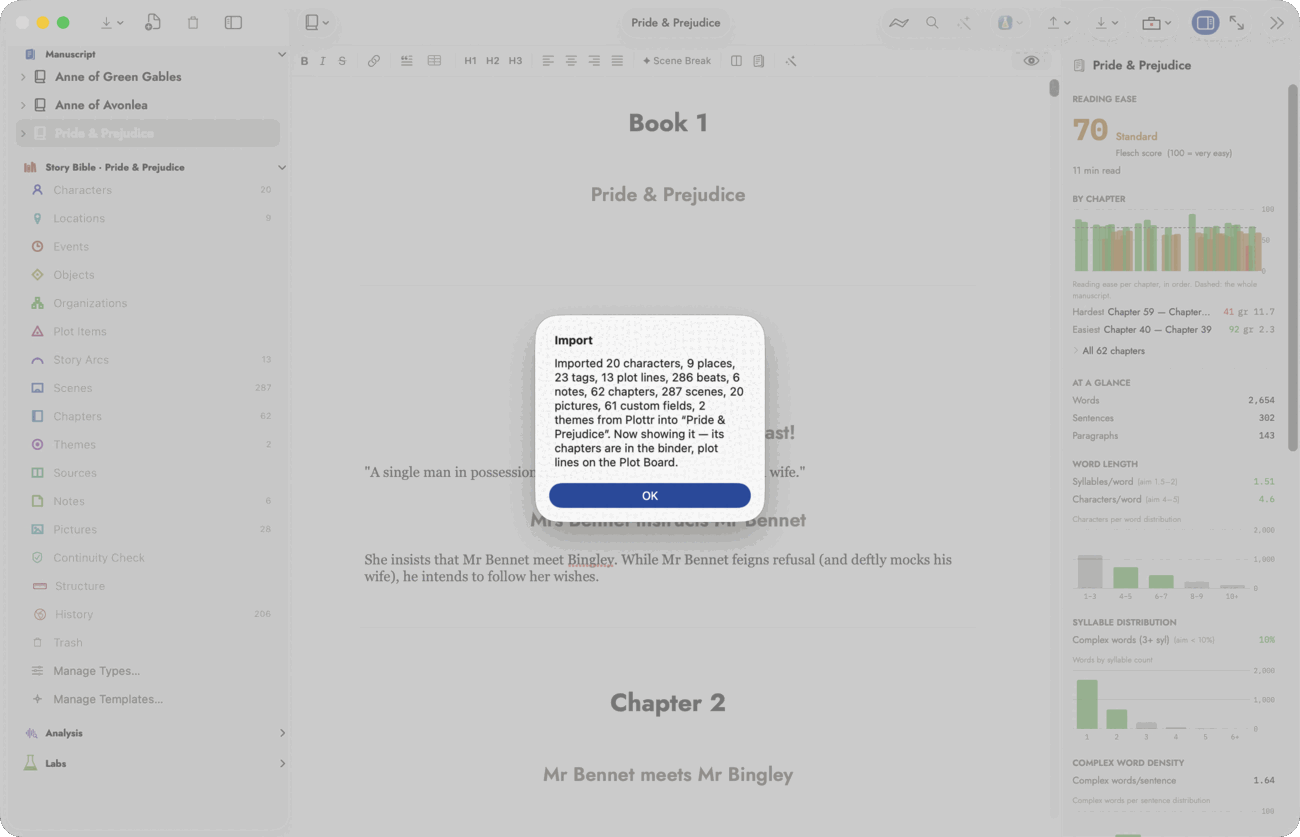 The name in the alert is the file's, which is why it
is worth naming a
The name in the alert is the file's, which is why it
is worth naming a .pltr properly before importing it. The alert
also tells you it has switched you to the new manuscript, and where the
material landed.
EPUB reads the EPUB's own package
file — the spine gives reading order, and each spine document becomes one
chapter, in the order the book itself declares, not by guesswork. An
<h1> names the chapter; horizontal rules mark scene
boundaries, which is exactly what Sgeulai's own EPUB export writes and close
to what most EPUB producers write. Two things an EPUB genuinely can't
carry: which sections are front or back matter (checked against a list of
standard trade-book titles — "Dedication," "Copyright,"
"Acknowledgments," and similar — with anything unrecognized treated as
body prose, since mislabeling a real chapter as front matter would knock
out its numbering), and scene names, which come back as "Scene 1," "Scene
2." This one runs with a progress sheet rather than blocking the window,
because it also auto-links every Story Bible name it finds across the new
prose once the chapters are in.
yWriter reads a yWriter 7 project (the .yw7
file): chapters and scenes with their text, characters, locations and items
as Story Bible records, and each scene's viewpoint (the first character
listed, as yWriter treats it), cast, setting, goal, conflict, outcome,
status and date. A chapter marked as beginning a new section names the part
for those after it. Chapters and scenes yWriter marks unused, notes or
to-do are left out unless you tick Include unused, notes and to-do
chapters. yWriter 5 and 6 projects, which keep scene text in
separate files, are refused with a message: save the project in yWriter 7
first.
novelWriter asks for the project's folder, the
one holding nwProject.nwx, so Sgeulai may read the documents
beside it. Its headings give the structure (# a part,
## a chapter, ### a scene), and a #!
title page names the book and comes in as front matter. Its notes under
Characters, Locations, Plot, Timeline, Objects and Entities become Story
Bible records, found by their @tag, one for each tagged heading
in a note; and a scene's
@pov, @char, @location and
@plot lines link it to them. %synopsis becomes the
summary and other % comments the scene's notes. Documents
switched off in novelWriter are left out unless you tick Include
inactive documents; its Trash is never read. Projects from
novelWriter 2 and from novelWriter 26 on both import.
Both also offer Link Story Bible names in the prose, on by default, which turns each name the Story Bible knows into a link as every manuscript import does.
You can also import facts into a single record from Wikipedia, from the record's own sheet — useful for historical figures and real places.
Taking an import back out
Import History…, at the bottom of the Import menu, lists every import into this project, newest first: the file, the importer, when, and what it created. Scrivener, EPUB, Markdown and Word, Plottr, Aeon Timeline, yWriter, novelWriter, bibliographies, Sgeulai Manuscripts and project files are all recorded. Highlights and History CSV imports have their own ways back and aren't listed, and imports made before this history existed can't be.
Revert… moves the records the import created to the Trash, so a revert can itself be undone by restoring them. Before it does, it says how many will go. A record you've edited since the import (its name, summary, details, notes or prose) is kept and named. Relationships and dates the import added to records that were already here are deleted, and a backup is saved first. The manuscript itself stays, empty, so chapters restored from the Trash have somewhere to go.
Sending work out
The Export button in the editor toolbar (the arrow-out-of-a-box icon) holds the everyday exports and the window that holds the rest.
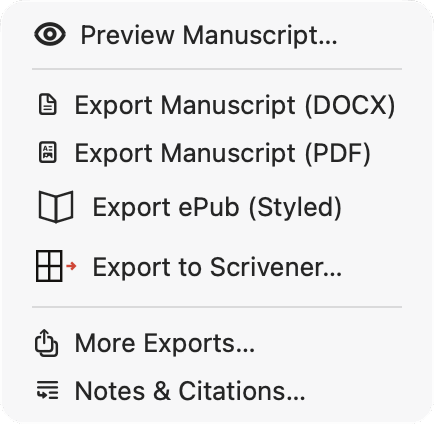
| On the menu | For |
|---|---|
| Preview Manuscript… | See the pages before you export — its own subsection below. |
| Export Manuscript (DOCX) | A Word file with a real, clickable table of contents — for an editor who wants to navigate a Word document directly. |
| Export Manuscript (PDF) | Standard manuscript format — Letter trim, one-inch margins, deliberately unbranded — for submission. |
| Export ePub (Styled) | A readable EPUB. The only EPUB export there is; there is no plain/unstyled variant. |
| Export to Scrivener… | A manuscript nested by Part, going back out as a .scriv package — see below. |
| More Exports… | Opens the Export window, with every export and its options. |
| Notes & Citations… | Where this project's notes go and how citations are styled — a setting every export follows. See Notes & citations. |
The Export window
More Exports… opens a window listing all fifteen exports, grouped down the left — the four on the menu among them, so every format's options are in one place. A line at the top of each pane says what will be exported: the manuscript the binder is showing, or every manuscript when none is chosen. Options are remembered per format, and the window opens on the one you used last. After the Export… button, each writes straight to a save panel.
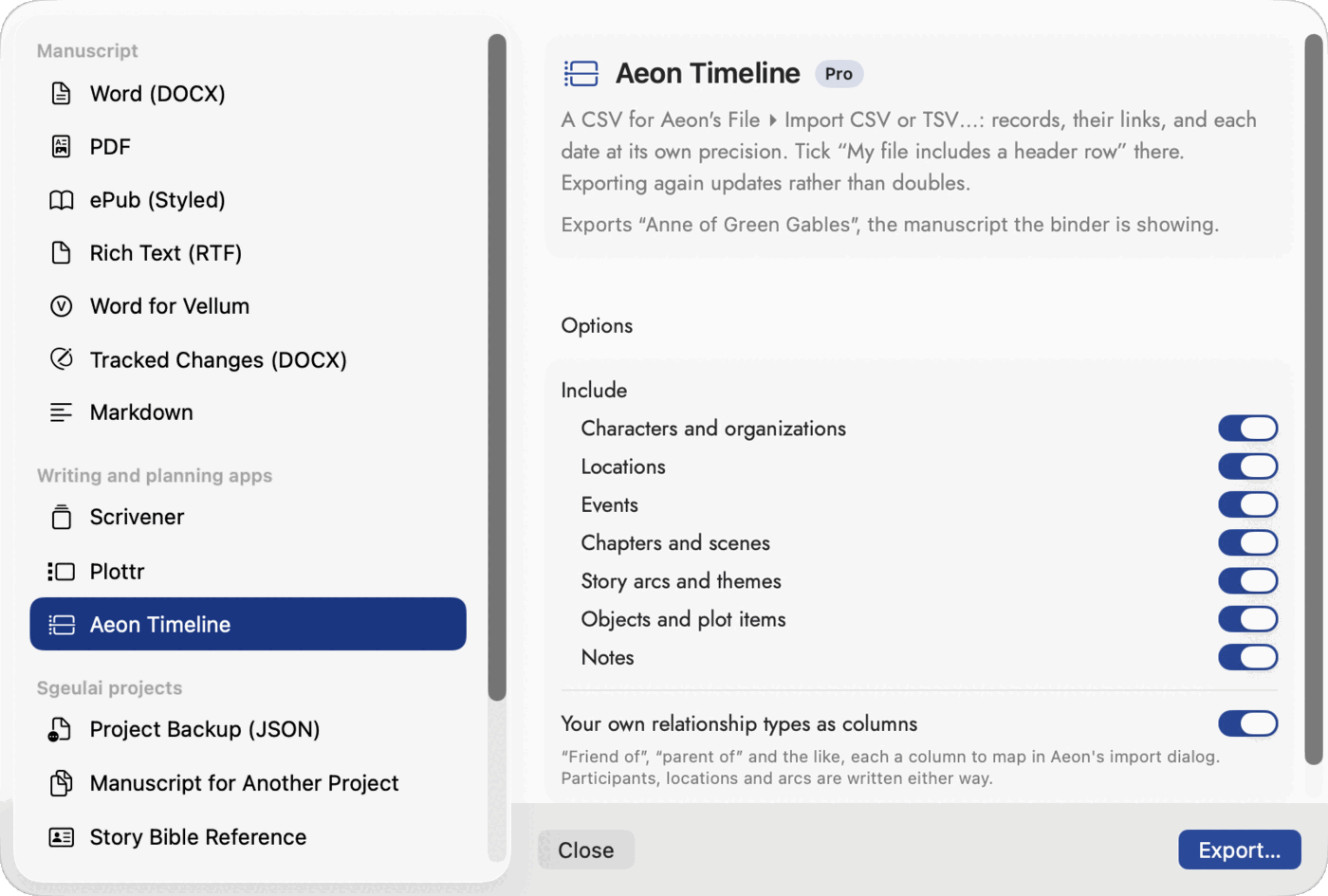 The line under the description says what will be
exported, so the manuscript scope is checked before the save panel, not
after.
The line under the description says what will be
exported, so the manuscript scope is checked before the save panel, not
after.
| Group | Export | For |
|---|---|---|
| Manuscript | Word (DOCX) | As on the menu. |
| As on the menu. | ||
| ePub (Styled) | As on the menu. | |
| Rich Text (RTF) | The manuscript-format PDF's page setup (trim, margins, page numbers) in an RTF file instead. | |
| Word for Vellum | Styled for Vellum's own importer to recognise, with no table of contents field — Vellum builds its own front matter from the heading structure. | |
| Tracked Changes (DOCX) | A Word file carrying your own edits as tracked revisions, for an editor who will accept or reject them and send it back — see below. | |
| Markdown | A folder of Markdown — one .md per chapter plus an index.md holding the whole book — or, by its option, that one file alone. See below. | |
| Writing and planning apps | Scrivener | As on the menu. |
| Plottr | A .pltr file: chapters as beats, scenes as cards, arcs as plot lines, and the cast and places. | |
| Aeon Timeline | A CSV for Aeon's own File ▸ Import CSV or TSV…: the cast, places, events, chapters and scenes in one file, with their links and each date at its own precision. Exporting again updates rather than doubles — see below. | |
| Sgeulai projects | Project Backup (JSON) | Everything, in a format you can read without this app. |
| Manuscript for Another Project | One manuscript, on its own, to merge into a different Sgeulai project — see below. | |
| Story Bible Reference | A name-to-id catalog of this project's characters, locations, and other Story Bible records, for an outside tool building a file that links to them by id. | |
| Reports | AI Provenance Report | A PDF breakdown of how much of the manuscript carries an AI mark and of what kind — see Writing aids in the editor. |
| Spoiler-Safe Canon | A Story Bible PDF filtered to what a reader who's finished one book (and everything before it) is allowed to know — for a beta reader or collaborator. Unavailable until the project has at least two books. |
Options so far. The manuscript formats carry buttons for Notes & Citations… and Prose Formatting…, so you can check both from where you export. Markdown asks whether to write a folder or one file. Aeon Timeline asks which kinds of record to include and whether your own relationship types become columns.
.docx, but they are built to be read by
different things next: Vellum's own import step, or a person scrolling and
clicking a table of contents in Word. Pick the one for whoever opens it next
rather than by file extension.
[[wikilink]] inside
a known record's own text that points at one the reader isn't cleared for
is redacted to "someone," even when the link carries its own display name.
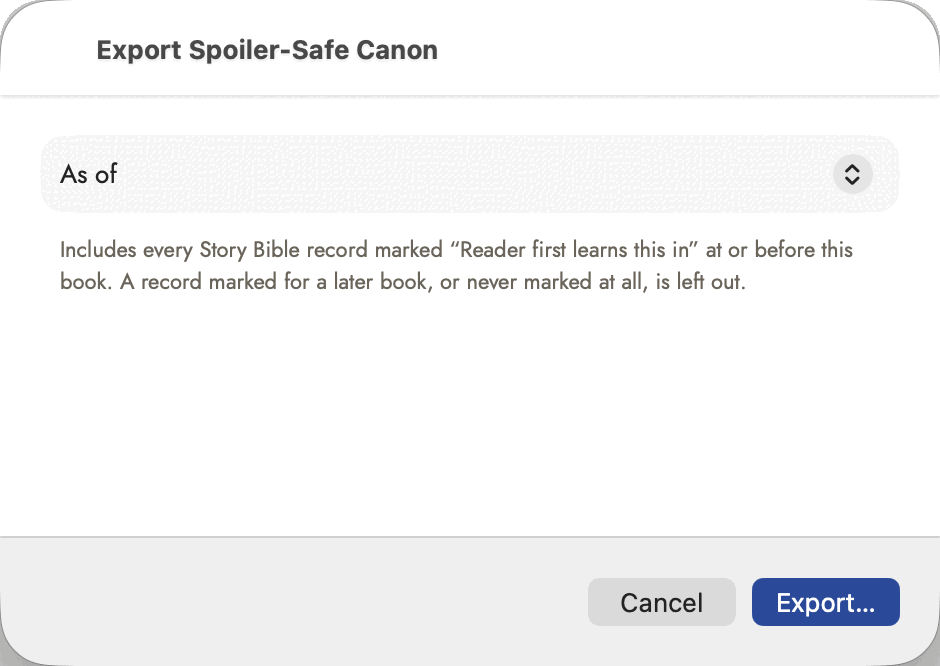 One picker and one sentence — the sentence is the part
worth reading, because "never marked at all" is on the excluded side.
One picker and one sentence — the sentence is the part
worth reading, because "never marked at all" is on the excluded side.
Markdown
Normally the one export that does not write a file. It writes a
folder, and the save panel asks where to put it rather than
what to call it. Set its Write as option to One
file to get just the whole-book index.md, under a name
you choose; a single file has nowhere to put pictures, so they stay behind,
and the alert says so.
Inside: one .md per chapter, numbered so they sort in reading
order, plus an index.md carrying the whole manuscript inline with
a linked table of contents above it. That means the folder reads correctly
either way — chapter by chapter for an editor working in pieces, or
index.md alone for anyone who wants the book as one document.
Pictures referenced from the prose land in an images/ subfolder
beside them, created only when something actually references one.
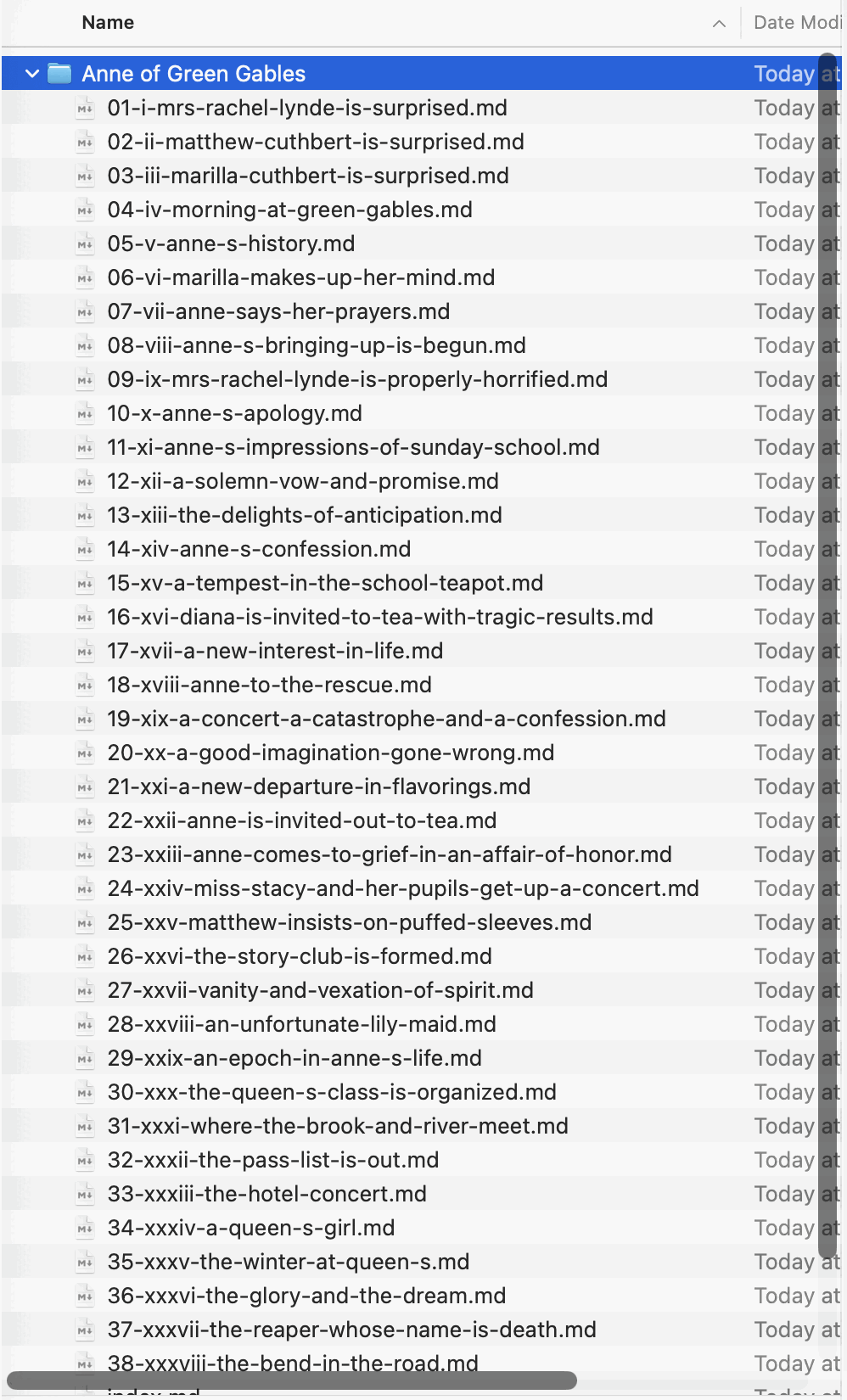 The numbers keep the chapters in reading order in any
file list.
The numbers keep the chapters in reading order in any
file list.
Tracked Changes (DOCX)
A Word file that carries your edits as real tracked revisions rather than
as finished prose, for the round trip where an editor accepts or rejects each
one and sends the file back. Importing that reply is the other half: if the
returned .docx still holds unresolved review markup, Sgeulai says
so on arrival and offers Review Changes…, which walks the
insertions and deletions one at a time.
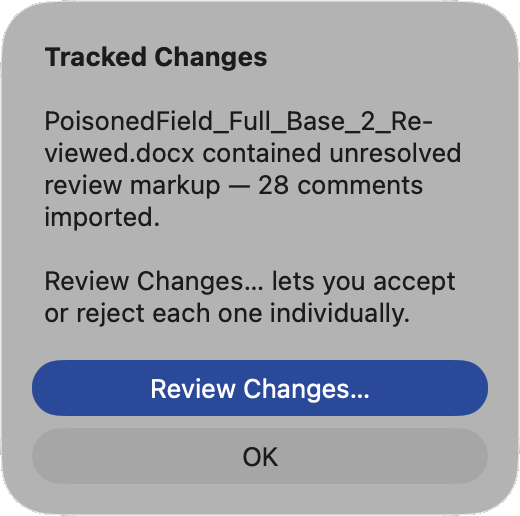 Comments and revisions are counted separately.
Comments land as ordinary manuscript comments whatever you choose here;
only insertions and deletions need accepting or rejecting.
Comments and revisions are counted separately.
Comments land as ordinary manuscript comments whatever you choose here;
only insertions and deletions need accepting or rejecting.
Preview Manuscript…
Opens a sheet with its own Styled/Manuscript-format toggle and its own Export menu — four outputs local to the preview, separate from the toolbar's: Export PDF (Styled)…, Export PDF (Manuscript Format)…, Export DOCX… and Export EPUB…. Reach for this when you want to see the page breaks and typography before deciding what to send.
Exporting to Aeon Timeline
Aeon's own .aeon file can't be written safely from outside,
so Aeon Timeline, in the Export window, writes a CSV instead. In Aeon,
choose File ▸ Import CSV or TSV…, tick “My file
includes a header row”, and the columns match themselves. Participants,
locations and story arcs fill Aeon's relationship columns; your own
relationships each get a column to map to an Aeon relationship there. Dates
keep their precision. Each row carries its record's ID as Aeon's Internal
ID, so a second export and import updates instead of doubling. An Aeon item
holds one start and one end date, so any third date is left out, and plot
items, objects and notes go under the type you pick in Aeon's dialog. Its
options choose which kinds of record go and whether your own relationship
types become columns.
Exporting to Scrivener
Export to Scrivener… is the same round trip in the other
direction from Import Scrivener Project…: a manuscript
nested by Part, going back out as a .scriv package.
Moving a manuscript into another project
Manuscript for Another Project, in the Export window, and Manuscript from Another Project, in the Import window, are a pair, and neither is the same thing as a project backup. Export writes just one manuscript — plus the Story Bible records that belong to it — to its own file; Import merges that file additively into whichever project is currently open, alongside whatever is already there. Nothing existing gets touched, and any reference the manuscript had to something outside its own scope (an entity that was never assigned to that manuscript) is dropped on import rather than pulled in — the import result tells you how many links were dropped, so nothing goes missing silently.
This is deliberately different from Import Project Backup…, which replaces every record in the currently open project with what's in the backup file. Use the manuscript export/import pair to move one book between projects; use a project backup to restore or clone a project wholesale.
Merging whole projects: Whole Project Files
One import is hidden. Open the toolbar's Import menu, hold ⌃⌥⌘ (Control, Option and Command), and choose More Imports… while holding them: the Import window then lists Whole Project Files under Sgeulai projects. Opened without the keys, it isn't there.
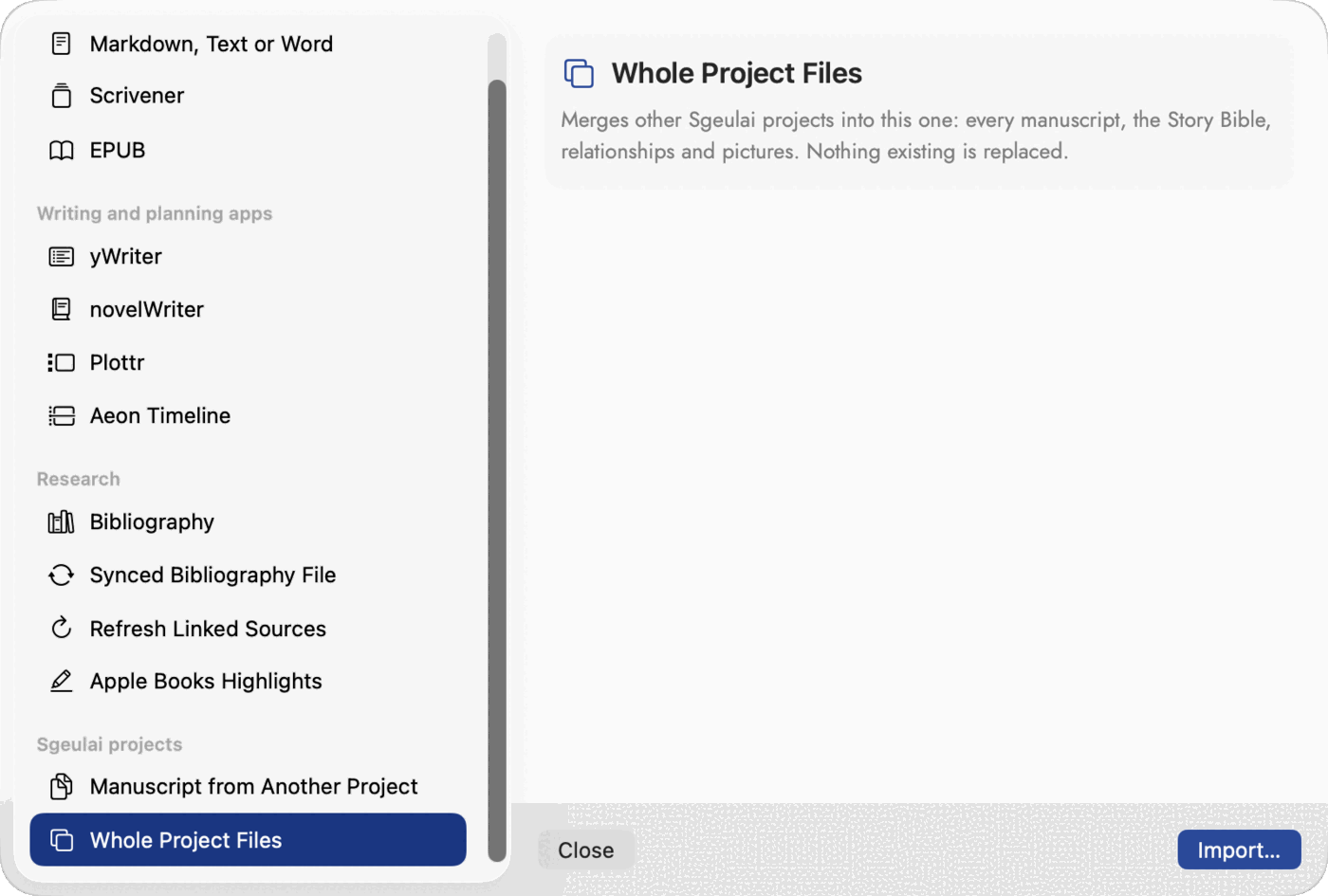 The row appears only when the window was opened with
the keys held.
The row appears only when the window was opened with
the keys held.
Hold the keys after the menu opens, not before. With Control held, macOS treats the click as a right-click and shows the toolbar's own menu instead.
It takes .sgeulai project files — nothing needs exporting
first — and merges them into the open project. Pick several at once and they
merge one after another, with one alert reporting on each. From each project
you get:
- Every manuscript, with its chapters and scenes, added alongside the ones already here.
- The Story Bible, including records filed under no manuscript, which arrive filed under none.
- Relationships, including ones between records in two different books.
- The picture library, each picture still belonging to the book it came in with.
A record this project already has is reused, not copied. Same name and same type, and the arriving record becomes the one already here: it gains the new book in Appears In, and every link in the merged books points at it. Its fields are not combined with the arriving copy's — use Merge for that. The alert says how many records were matched. Chapters and scenes are never matched.
Your file is never opened in place. Sgeulai reads a private copy of it and throws the copy away, so it merges what is saved on disk — if that project is open in another window, let it save first.
Backups
A full project backup is written automatically before anything destructive — clearing a manuscript, replacing an AI analysis. Find them under Tools ▸ Show Automatic Backups.
What is not touched
Importing a manuscript does not take ownership of the file it came from.
Deleting a manuscript inside Sgeulai leaves the original .md on
disk exactly as it was.