The binder
The left-hand pane is the book's shape: manuscripts, the parts they are divided into, the chapters inside those, and the scenes inside those. This page goes past the basics — naming, numbering, every way to move one, and how all three connect to the rest of the app.
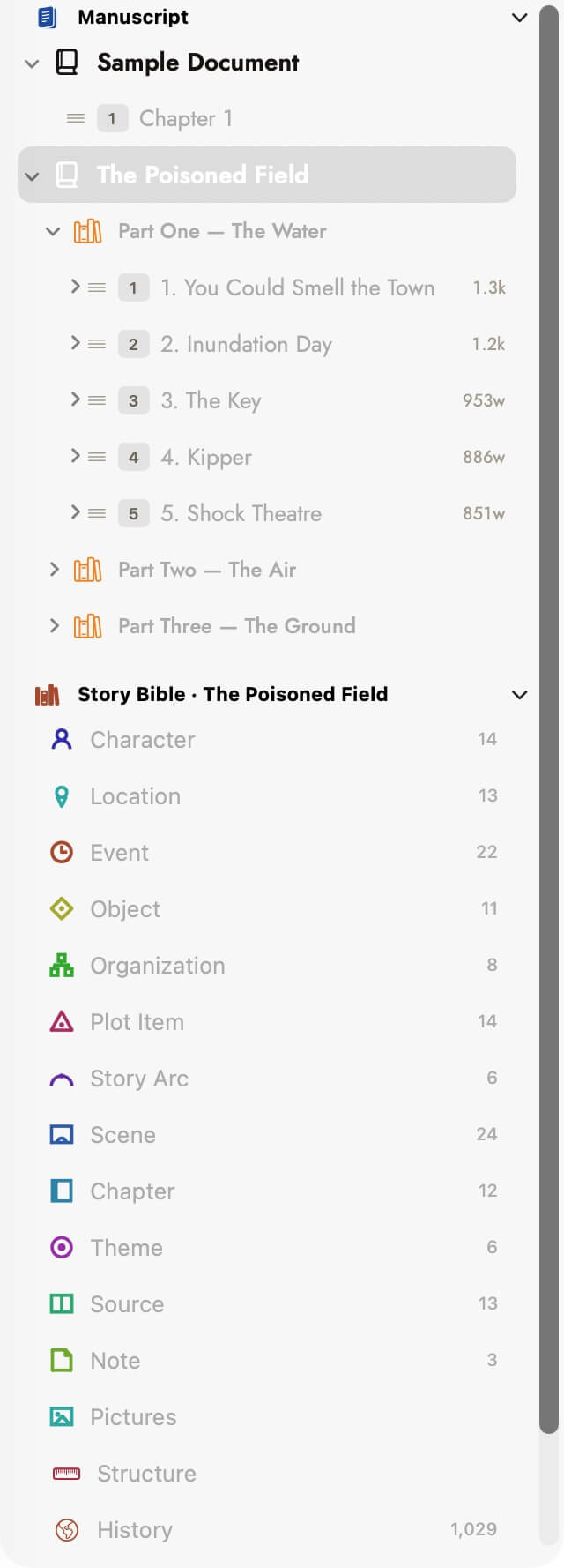 Two sections, one pane. The manuscript half is the
book's shape; the Story Bible half is everything the book is about, and its
heading names which manuscript those counts are for.
Two sections, one pane. The manuscript half is the
book's shape; the Story Bible half is everything the book is about, and its
heading names which manuscript those counts are for.
Naming
A chapter or scene's name in the binder is not a caption kept in sync with
its record — it is the same name field the Story Bible
record uses. Rename it either place and the other updates, because there is
only one field.
| Created via | Starts named |
|---|---|
| Add Section ▸ Chapter | "New Chapter" |
| Add Scene | "New Scene" |
| Add Part… | Its starter chapter is "New Chapter"; the part itself has no default — the field starts empty and Create stays disabled until you type something. |
| A blank new manuscript | Its first chapter is "Chapter 1", not "New Chapter." |
| Importing a manuscript | Whatever the source heading text or Scrivener title already said. |
Renaming a chapter, scene or part is Rename… on its context menu, not an inline click — it opens a small sheet with the current name ready to edit. The only rule enforced is that the new name can't be blank; nothing stops two chapters (or a chapter and a scene) from sharing the same name.
Chapter and scene numbers
A chapter's position is a number underneath — but two different things happen depending on how you moved it:
- A plain drag-reorder (no part involved) never mints a new number. It takes the numbers already on the chapters you moved and redeals them to match the new order. This matters because one chapter can appear in more than one manuscript at once, sharing a single number field — renumbering it from scratch here would reorder it in every other book it's in too.
- Filing a chapter into a part — by dragging it onto the
part, or with Move to Existing/New Part — lands it at a number just
past whatever's already at the end of that part, so nothing else in
the book has to shift. This is what "fractional underneath" means:
the chapter's real stored number might be something like
4.5, sitting between chapters 4 and 5 without touching either of their own numbers.
What you actually see — "Chapter 1", "Chapter 2" — is always plain and gap-free, computed fresh from whatever order the raw numbers sort into. The fractional value never shows through.
Scenes carry a number too, but it's never shown as a badge — a scene is placed purely by its position under its chapter. Unlike chapters, dragging scenes to reorder them renumbers the whole list from one, since a scene only ever belongs to a single chapter and there's no cross-manuscript sharing to protect.
Parts are a property of chapters
There is no separate Part object to create and then fill. A part is simply a name that a group of chapters share, which is why creating one always means creating it with something in it. Two ways in:
- Add Part… in a manuscript's context menu makes a new part with one starter chapter, ready to be renamed and written.
- Move to New Part… takes chapters you already have and groups them under a name you give.
The consequence of parts being a property rather than a container is a good one: a chapter is never trapped in a part. Moving it out is just clearing the name, which is what Remove from Part does.
Moving chapters and scenes
Every way to move a chapter:
- Drag to reorder — within a manuscript, or within a part.
- Drag onto a part to file it there.
- Drag onto the manuscript's own row (or an orphan part's row) to pull it back out of whatever part it's in.
- Move Up / Move Down on its context menu, for a one-step nudge.
- The multi-select bar, below — for moving a scattered handful at once.
Scenes have the same Move Up / Move Down, plus drag-to-reorder within their own chapter. There's no drag target for moving a scene into a different chapter — do that from the scene's own record instead.
Moving several chapters at once
Restructuring usually means moving a scattered handful of chapters together — chapter 2, chapter 7 and chapter 12 into one part — so the selection does not have to be a contiguous run.
| To do this | Do that |
|---|---|
| Add one chapter to the selection | Option-click it |
| Select a run of chapters | Shift-click the far end |
| Start again | Click any chapter normally, or press Clear |
A bar appears along the bottom of the binder as soon as more than nothing is staged, counting what you have and offering the three things you can do with it: Move to Existing Part, Move to New Part…, and Remove from Part.
Moving a chapter to a different manuscript
Not a binder drag — open the chapter's own record and use the Appears In checklist of every manuscript in the project. Unchecking the one it's in and checking another moves it. Because it's a checklist rather than a single choice, a chapter can belong to more than one manuscript at once, appearing in both binders and carrying one shared position — which is exactly the case the redeal-not-renumber rule above exists to protect.
Splitting a chapter or scene
Cuts the prose in the editor at the cursor, moving everything from that point on into a new sibling entity — the fastest way to break a chapter that grew too long, or a scene that turned out to be two.
| To do this | Do that |
|---|---|
| Split into a new scene | ⌃⇧⌘S |
| Split into a new chapter | ⌃⇧⌘C |
Both work from the manuscript editor, not the binder itself. With a bare caret, everything from there to the end of the document moves into the new entity, which gets a default name ("New Scene" or "New Chapter"). Select some text first — a working title, a heading you typed as a placeholder — and the split uses that selection as the new entity's name instead, removing it from the flowing prose so it doesn't linger as a stray line at the top of what it was meant to title.
Splitting into a new scene from a flat chapter (one with no scenes of its
own yet) turns the whole chapter scene-only: everything before the cursor
becomes "Scene 1," and the new title becomes the scene after it. Splitting
into a new chapter always creates a sibling positioned right after the
current one — from a scene, any of that chapter's later scenes move with
it, since a chapter split means "the book divides here," not "shorten this
one scene." Numbering slots the new entity in between its neighbours (a
chapter split from 4 becomes chapter 4.5) the same way
Move to New Part… and a manual insert do — see
Chapter and scene numbers above.
What a binder row shows
A chapter row: a number badge — or, for front or back matter, an icon instead of a number — the name, and its word count. A small filled checkmark appears while it's staged for a part move.
A scene row is lighter: a small coloured dot for its status (planned through final, or cut), the name, and its word count. No number badge.
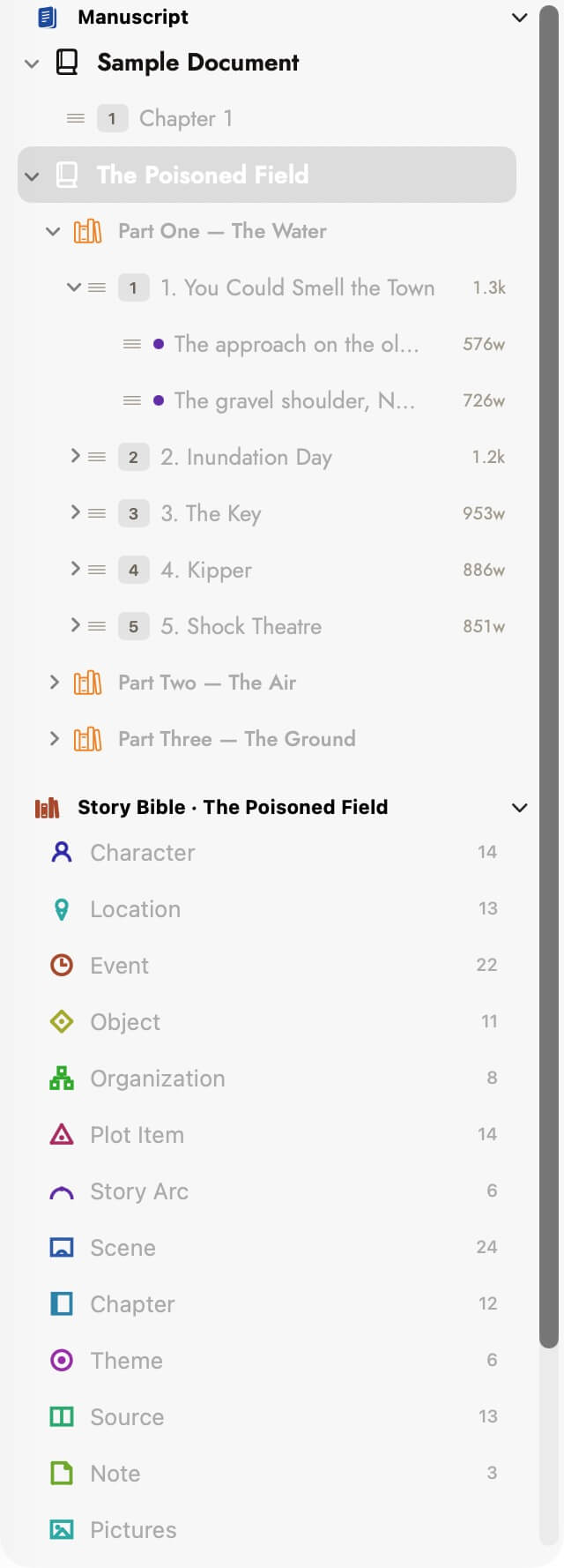 The two row shapes side by side. The chapter's 1.3k is
its scenes added up — a chapter's word count is never typed, only
totalled.
The two row shapes side by side. The chapter's 1.3k is
its scenes added up — a chapter's word count is never typed, only
totalled.
Neither row shows whether AI has read that chapter, or its revision status — those live on the chapter's own record, reachable from Open Chapter Record on its context menu.
Reading several sections together
Selecting a part's own heading (when it has no title page of its own), or choosing Read Part Chapters Together when it does, opens every chapter in that part as one continuous, genuinely editable document — not a preview. Each chapter's own prose appears with its scenes beneath it, and typing anywhere writes straight back into that chapter or scene's own text, exactly as if you'd opened it alone. A whole manuscript opens the same way the first time you create it.
A chapter that has scenes always opens this way when you click it directly in the binder, too — Sgeulai only shows a single chapter alone, on its own, when it has no scenes at all.
A chapter or scene's own record
Chapter and Scene are Story Bible types in their own right — see The Story Bible — so their record pages use the same Full, Compact and Necessities system as a character or location. That view mode governs the record; it has no effect on the binder row itself, which always shows the same fixed set of fields regardless of which view the record is set to.
Front matter and back matter
A chapter can be marked Front Matter or Back Matter from its context menu — a copyright page, a dedication, an acknowledgements section, an about-the-author note. It's excluded from sequential chapter numbering ("Chapter 12" skips over it) and always included in export, in word-count totals, and when sections are read together.
How headings become chapters and scenes on import
This mapping only happens once, at the moment a manuscript file is
imported — it is not a live relationship. Editing prose afterward, including
typing a literal # or using a heading shortcut, never creates,
merges, or re-parents a chapter or scene; the binder is the record of the
book's shape from that point on.
At import, heading level decides the role:
| Level | Becomes |
|---|---|
# | A part label, if it has ## headings under it — otherwise a standalone chapter. |
## | A chapter. |
### | A scene. |
A chapter with no explicit scene headings can still come in with scenes: a line of asterisks or a similar thematic break in the source text splits it into scenes named "Scene 1", "Scene 2", and so on.
Which analysis tools read part and chapter number
Structure and Cast Grid both read straight through part groupings to a single numbered run of body chapters — neither visualizes parts as bands or sections. Scene Grid works the other way, keyed entirely on a scene's number within its own chapter. The Narrative Timeline, Corkboard and Plot Board each show a chapter's part name as a small label when it has one, without grouping by it. Exporting to Scrivener is the one place a part becomes a real container again — each contiguous run of chapters sharing a part name becomes an actual Scrivener folder, and importing from Scrivener reverses that back into part names on the way in.
Deleting
Deleting a manuscript removes its chapters and scenes, its work record, and every Story Bible entity, relationship and Cast Grid line that belonged only to it. Anything shared with another manuscript is kept and simply detached from this one.
The original .md file on disk is not touched, and a full project
backup is written automatically first — find it under
Tools ▸ Show Automatic Backups.